
Your tasks and your calendar,
finally in one place
Epitome brings your lists, your deadlines and your appointments together in a single app — and helps you work out when to actually do what's waiting.
Android · English and French · No ads, no trackers
The calendar
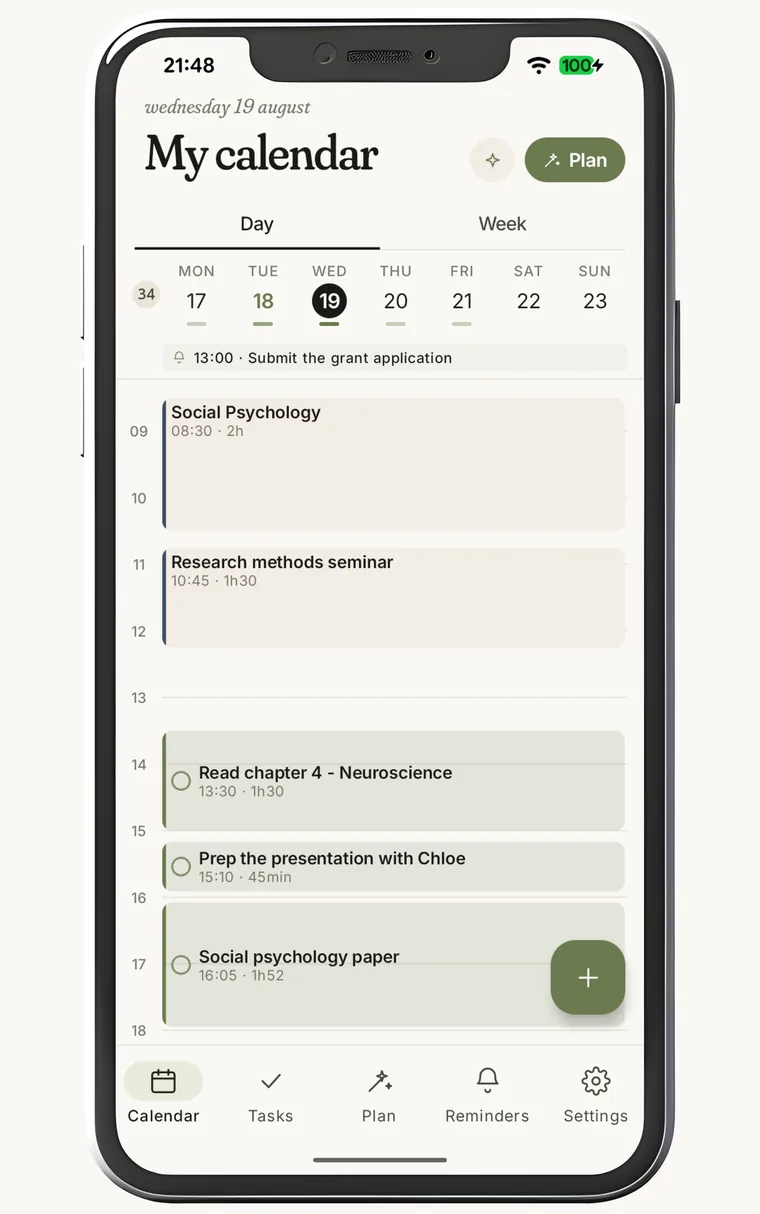
Appointments and work on the same grid
A calendar usually shows only what somebody else called you to. Here, lectures, meetings and imported appointments sit alongside the work slots placed for your own tasks — same scale, same screen. The day finally reads for what it actually holds.
Ticking a slot means "I've just done that": the block is pulled back to end at the moment you tap, keeping its length. Your calendar therefore keeps the time you really spent, not the slot that was planned.
- Day and week — two views, and a two-finger pinch to stretch or tighten the hours.
- Your other calendars — Google, Outlook, iCloud, Nextcloud or any CalDAV server attach through their iCal address, re-read every hour. Epitome only reads: nothing is ever created, changed or deleted on their side.
- Reminders at the top of the day — whatever has no duration (a call to make, a form to hand in) stays on its own strip, above the grid.
- Move, pin — a long press drags a block; pinned, it becomes untouchable by a re-plan.
The tasks
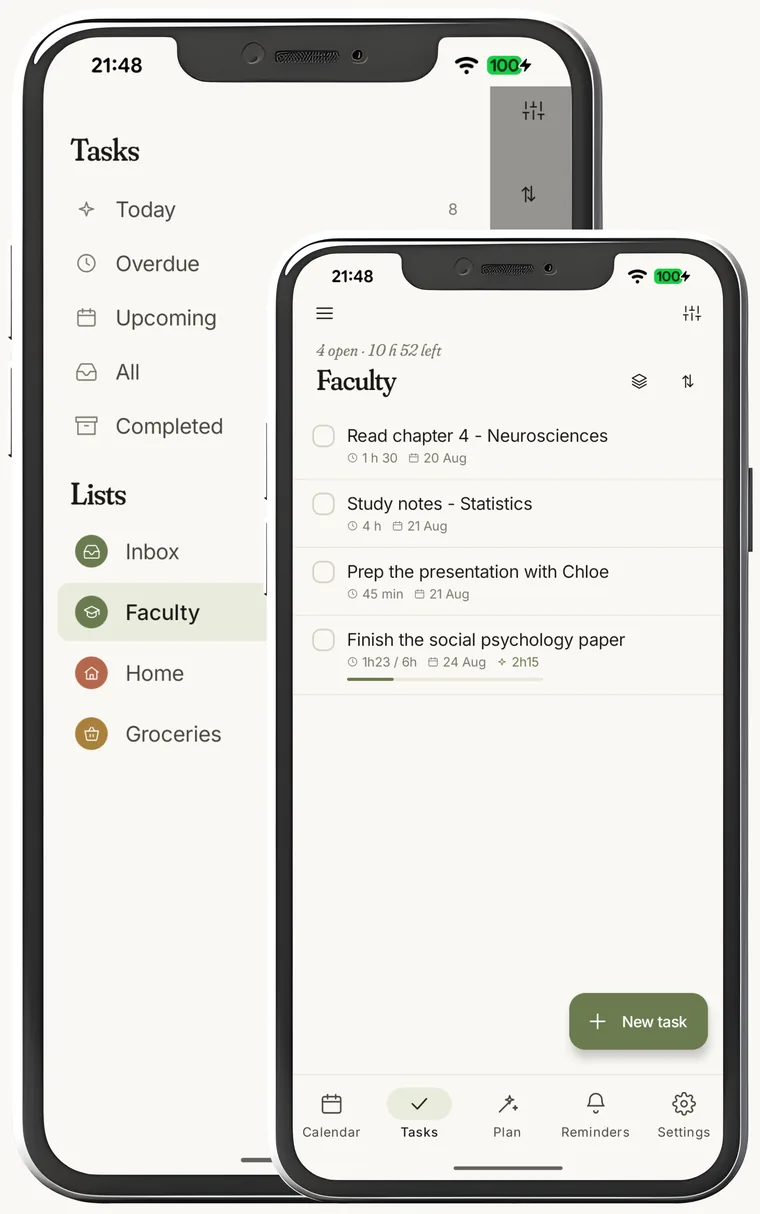
A task has a length, not just a date
A due date says when it has to be finished. It says nothing about when to start, or how long it will take. So every task carries an estimated total duration, and gets done in pieces placed across the calendar rather than in one sitting.
Progress reads right on the row — "1 h 23 / 6 h", and a bar that fills as slots are ticked. When the ticked time reaches the estimate, the app asks the one thing it cannot guess: is the task done, or does it need more time?
- Two kinds of list — task lists, with duration, due date and planning; and item lists to simply tick off (groceries, gifts, ideas) that need neither.
- Steps, not sub-tasks — a task can be broken into steps, but only the task itself takes up time in the calendar.
- Five views across everything — Today, Overdue, Upcoming, All, Completed, on top of your own lists.
- Shortcuts in the title — type
/to pick a list,!to set the importance; the title itself stays clean. - Swipes — right to book a slot by hand, left to delete. An "Undo" strip follows every gesture.
The planning assistant
It places the work, you stay in charge
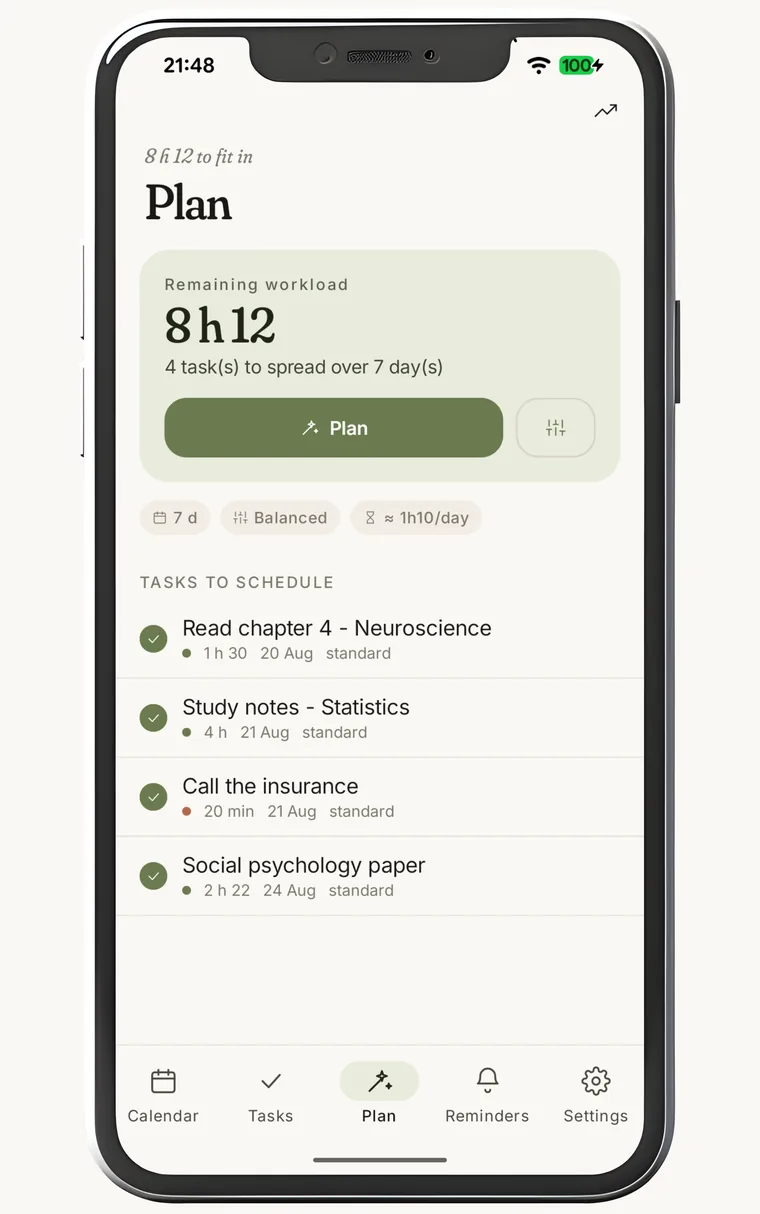
The assistant takes what you have left to do, looks at the hours you have opened to it, and cuts. It never fires on its own: you land on its settings, you read "8 h 12 to spread over 7 days", and you are the one who taps.
Here is what there is to set, and what each setting really does:
- The period — 1, 3, 7, 14 or 30 days from now. Optionally, start tomorrow to leave today untouched, and include or leave out tasks with no due date.
- The spread — Earliest fills each day as much as possible before moving to the next. Balanced aims for the same load every day: everything left to place, plus what is already booked, divided by the days actually available — so a day that is already busy gets less.
- The pace, task by task — Regular: one session a day, an hour at most. Standard: slots of up to 2 h, as many as needed. Intensive: up to 4 h in one go, grouped together.
- The minimum slot — 30 min by default, adjustable or switched off. The assistant refuses to manufacture a shorter one: rather than leaving crumbs behind, it trims the piece it places so that what remains also fits.
- The order between tasks — whatever other tasks are waiting on goes first; then come the overdue ones, the nearest due date, the importance, and the remaining workload. A task can also carry a "not before" date that no slot may fall below.
- The breaks — 5 min after a piece of an hour or less, 10 min beyond. Nobody runs two blocks back to back without breathing.
- What it never does — touch the past, move a slot you placed or pinned yourself, write over an appointment, or re-run itself after a change you made.
- What it tells you — the result names what did not fit and why: "not enough room before the due date", "no work hours set for that period", "waiting on a task that is neither done nor fully placed". While it is on screen, "Undo" puts the schedule back exactly as it was.
The work profiles
Your available hours, written down once
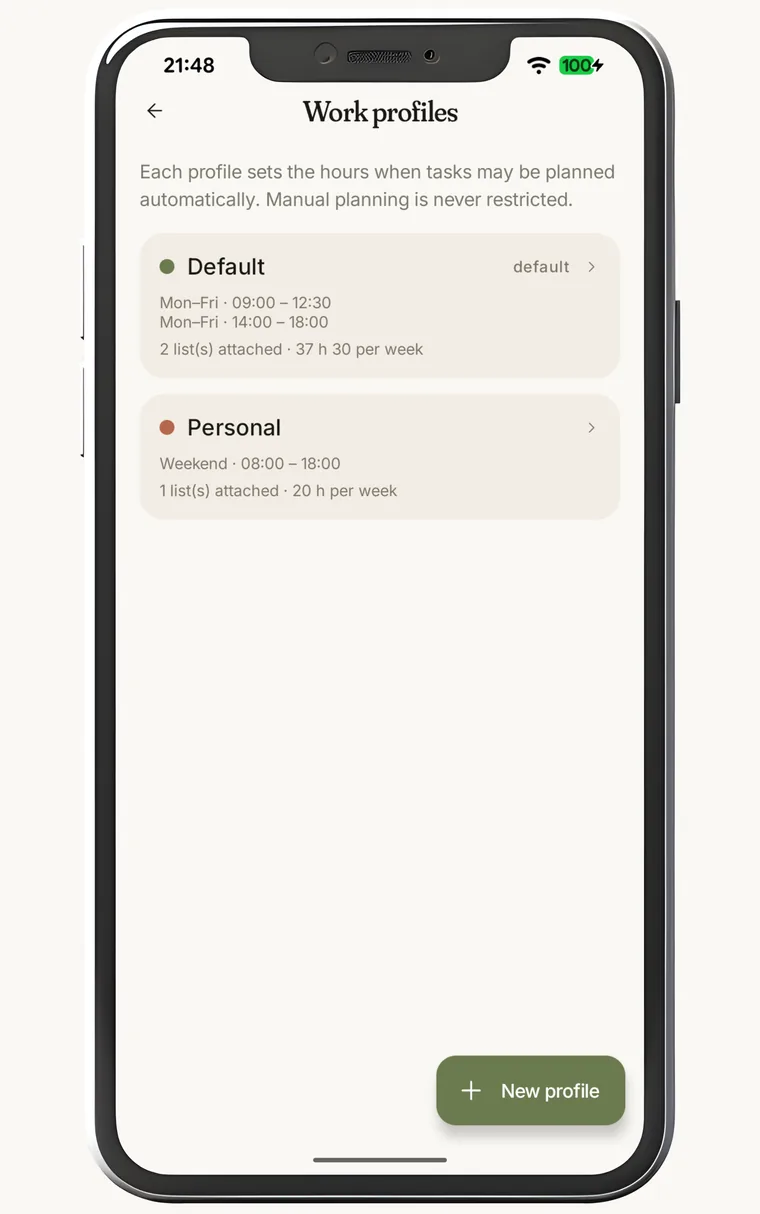
The assistant does not guess when you are free: you tell it. A profile is a set of weekly time ranges — days and hours — and every list points at one.
Keeping work apart from the rest therefore takes two profiles, not two apps. "Default" Monday to Friday, 09:00–12:30 then 14:00–18:00; "Personal" at weekends, 08:00–18:00. Tasks in the Faculty list land in the first, those in Home in the second, without you thinking about it again.
- The total is worked out for you — 37 h 30 a week for the “Default” profile. Enough to see at a glance whether the hours you have declared look anything like the life you lead.
- Doing it by hand overrides it — a profile only bounds automatic planning. Placing a slot yourself stays possible at any hour, Sunday evening included.
- A list can step out — set it to manual planning and the assistant stops touching it, without you having to exclude its tasks one by one.
- As many profiles as you have rhythms — weekdays, weekends, on-call shifts, part time. One per reality, not one per whim.
The look
An app that looks like you
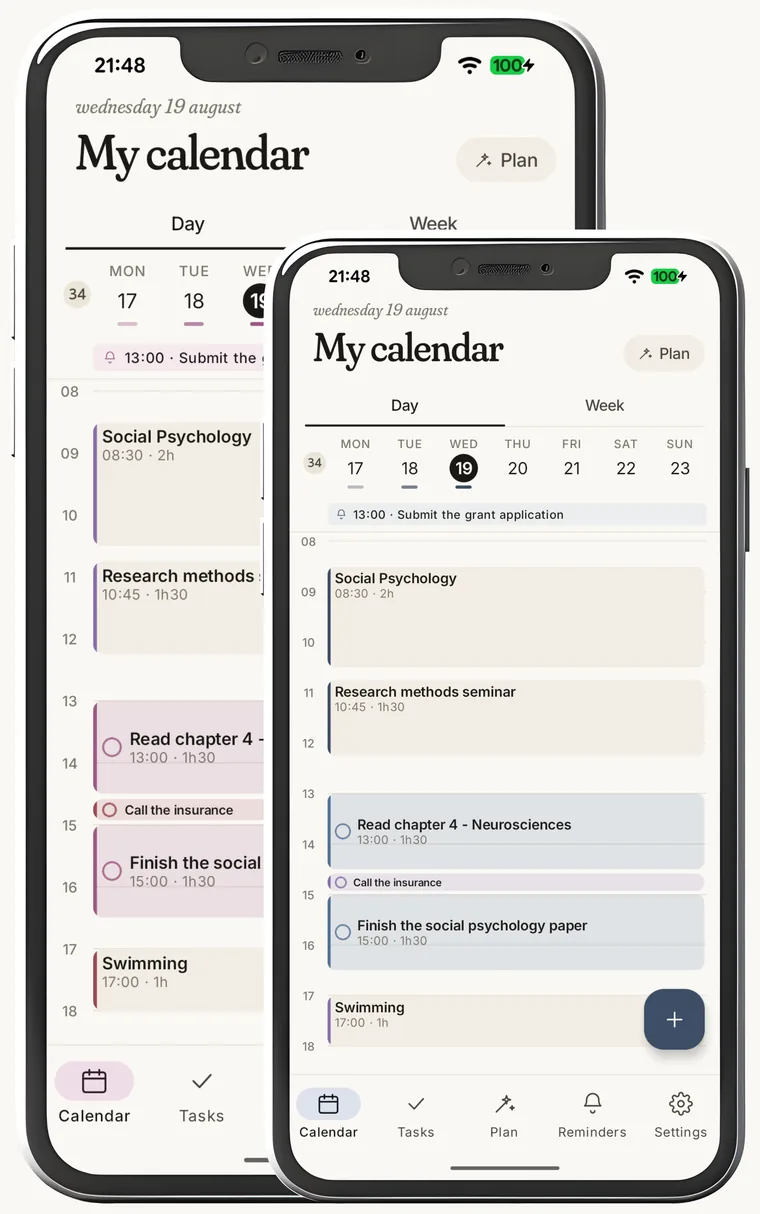
The accent colour is picked in the settings and repaints everything: the buttons, the tabs, the calendar slots, right down to the home-screen widgets. Olive, terracotta, ink, plum or fuchsia — five shades of the same family, chosen to stay readable side by side rather than to grab the eye.
The rest follows the same rule: a single palette for everything that takes a colour — lists, events, profiles, imported calendars. An attached Google calendar takes a colour from here, never Google's own, which would clash with all the rest.
- Dark mode — it follows the system, or stays always on, or always off. You decide.
- Language — English or French. Your device's by default, the other one setting away, with nothing to reinstall.
- The type — Fraunces for the headings, the system face for running text. An app you look at every day deserves better than a default.
And also
Reminders
Whatever has no length and fires at an exact time. The notification offers "Done" or "In 15 min", without opening the app.
Widgets
Today's schedule and today's tasks on the home screen — and the tasks can be ticked from there.
Statistics
Time actually spent, how closely the schedule was followed, how accurate your estimates were. Enough to learn to estimate, over time.
Notifications
A daily digest at an hour of your choosing, and, if you want one, an alert when each slot begins.
Repeats
Tasks, reminders and events all repeat. Each occurrence stays a row of its own, which you can move without disturbing the ones after it.
Your account
Everything is there again on another device. Signing out wipes this one's data without removing anything from the account.
Questions people ask
Does Epitome replace my Google Calendar?
No, it reads it. A Google, Outlook, iCloud or Nextcloud calendar, or any CalDAV server, is attached by its iCal address, and its events appear on the grid next to your work slots. Epitome only ever reads: it never creates, changes or deletes anything on their side.
How does the app know when to place my work?
You tell it your hours. A work profile describes the slots you have free across the week, say Monday to Friday from 09:00 to 12:30 then 14:00 to 18:00, and every task list points at a profile. The assistant only places slots inside those hours, never over an appointment, never in the past, and never without you pressing Plan.
Is there an iPhone version?
Not today. Epitome is an Android app, distributed through Google Play, and it needs Android 7.1 or later.
Do I need an account?
Yes. The account is what gives you your tasks back on another device. It is created with an email address, which receives a one-time code: there is no password to choose or to remember.
Is the app free?
Yes, within limits. Without a subscription you get one attached calendar, three task lists (inbox included), one work profile and three runs of the assistant a week. An Epitome Premium subscription lifts those limits. When a subscription ends nothing is deleted: whatever goes past the free limits is paused, not erased. The detail is in the terms of use.
Where is my data stored?
In the European Union, in Frankfurt, with Supabase. Your CalDAV credentials, the contents of the calendars you import and your display preferences never leave the phone. No advertising, no trackers, nothing sold on. The privacy policy says line by line what leaves and what stays.